
6. Rentals, Items, and Price
6.1 What Is a Rental?
A rental is one person using one item. It starts when they unlock the item, and ends when they return it. 2play then reviews the rental. Rentals are priced by your pricing plans (see §6.3), and any money a rental generates is credited to your organization.
6.2 Items
Each physical item, like a specific basketball, has its own record in 2play. When you stock a kiosk, you create an item for each thing you put in it. Items are created in the Mobile Admin Panel, and each one keeps its own history of rentals.
Item types
Every item belongs to an item type from our standard library, such as basketball or tennis racket. Each item inherits default values from the item type, which you can override:
- Image
- Replacement value: what a renter is charged if the item is lost or damaged. It depreciates slowly with each rental.
Need an item type that doesn't exist yet? Submit an issue with the item name, a description, and an estimated replacement value, and 2play will create it.

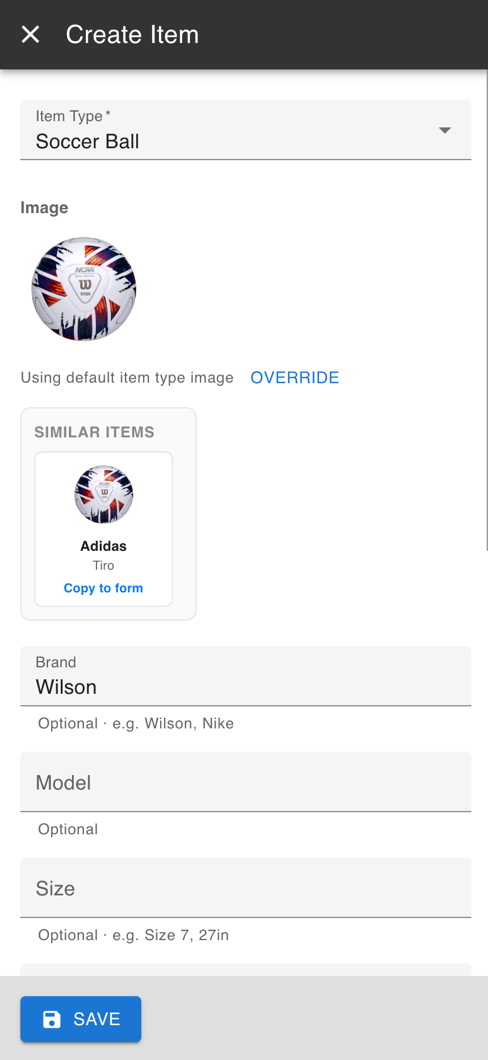
Adding an item to an empty locker
6.3 Pricing Plans
A pricing plan is a reusable price. Attach one to a kiosk, and it applies to every item there. For more control, attach a plan directly to an item, and it replaces the kiosk's plan for that item.
Org Members and Admins can create, edit, and assign plans from a kiosk or item's edit form. Delete them under Pricing Plans on the organization page.
Each plan has:
-
A payment configuration: Free, Method, or Hold.
Think of these as a security gradient — Level 1 is least restrictive at checkout, Level 3 is most. Pick the level that matches how much you trust your community and how much enforcement you want.
Level Config What it does 1 Free No payment method required. Renters get an email reminder when their included time is ending. If a rental is reviewed as damaged or not returned, it becomes delinquent and your organization reconciles it outside of 2play. 2 Method Payment method required on file before renting. No pre-authorization hold is placed. 3 Hold Payment method required on file. A pre-authorization hold is placed for the item's replacement value at checkout. -
An unlock price: charged once when the rental starts.
-
Included time: covered by the unlock price.
-
An hourly rate: charged after the included time ends.
-
A max hold amount (optional, Hold plans only): caps the authorization hold.
On Hold plans, 2play pre-authorizes a hold on the user's card at checkout. The hold amount is the item's replacement value — which defaults to the item type and can be overridden per item (see §6.2).
A hold doesn't have to match the item's full value — just enough to give the user skin in the game without scaring them off. A $300 scooter usually only needs a ~$20 hold.
Example — a plan with a $20 Max hold amount:
- Basketball, $30 replacement value → hold capped at $20.
- Frisbee, $15 replacement value → hold is $15 (under the cap, so the full value is held).
- Scooter, $300 replacement value → hold still capped at $20.
For example, $0 unlock, 35 minutes included, and $5/hr is Free for the first 35 min, then $5.00/hr.
Editing a plan updates everything using it. If you delete a plan in use, a kiosk left with no plan can't be rented until you set a new one. Past rentals keep the price they started with.
6.4 Internal Access
Internal access lets you offer a separate price to your own community, such as students, staff, or residents. For example:
- Anyone with a verified xavier.edu email: free for 1 hour
- Everyone else: $4 to unlock, then $1/hr
Only org Admins can configure internal access. To set it up:
- On your organization's page, press Edit under Internal Access and turn on Enabled.
- Add a verified email domain, an access code, or both. If you set both, people must meet both.
- In each kiosk's edit form, set Public Pricing for everyone and Internal Pricing for your community. To limit a kiosk to your community, leave Public Pricing empty.

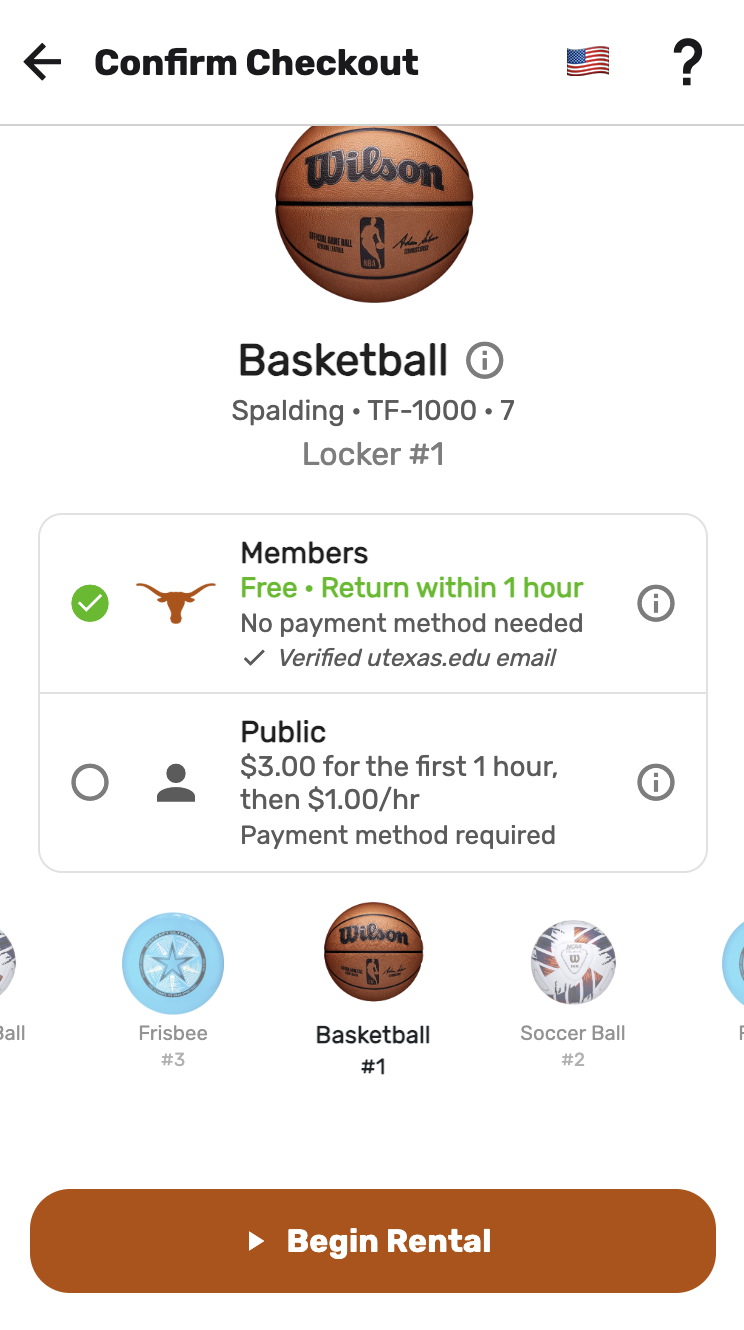
Internal Access on the organization page, and what renters see at checkout
At checkout, renters see both prices and can verify their email or enter the code. A correct code works at all of your kiosks for 24 hours.
6.5 Damage & Loss Charges
Damage and loss are recorded by staff when they review a rental. For damage, enter what's missing or damaged and an amount — or pick Full item value. For loss, choose Not returned; the item is marked lost, removed from its locker, and a replacement task is created.
On Method and Hold kiosks, the renter is charged the damage amount (or the item's replacement value if lost). On Free kiosks, the amount is only an estimate for your records — 2play never charges it (see §6.6). You can view item values on each item's page in PlayPortal.
6.6 Delinquent Rentals
A rental enters a state of delinquency when the user owes the platform something — either a failed payment, or a Free rental reviewed as damaged or not returned. While a user has a delinquent rental, they cannot rent again at any 2play kiosk.
Free kiosks
On Free kiosks, being late doesn't make a rental delinquent. Renters get an email 15 minutes before and when their included time ends. A Free rental becomes delinquent only when staff review it as damaged or not returned.
Because Free kiosks don't collect payment information, you'll typically reconcile directly with the user — for example, placing a charge on a student's account, or asking them to bring the item back. Once that's settled, resolve the rental in PlayPortal.
All other configurations
On Method and Hold kiosks, a rental becomes delinquent if the user fails to pay an outstanding balance. The user must add or update a payment method and settle the balance before renting again. This usually resolves itself without your involvement.
Resolving a delinquency
Any org member who can manage the kiosk can resolve a delinquency once it's been settled with the user. Open the rental in PlayPortal and click Resolve, then add a note on how it was resolved — pick a suggestion ("User paid offline", "Equipment returned", "Forgiven, no charge") or write your own.
On Method and Hold kiosks, resolving writes off the outstanding balance. On Free kiosks, the estimated cost is shown for reference only. The rental is marked settled and the user can rent again. The note and who resolved it are saved on the rental.
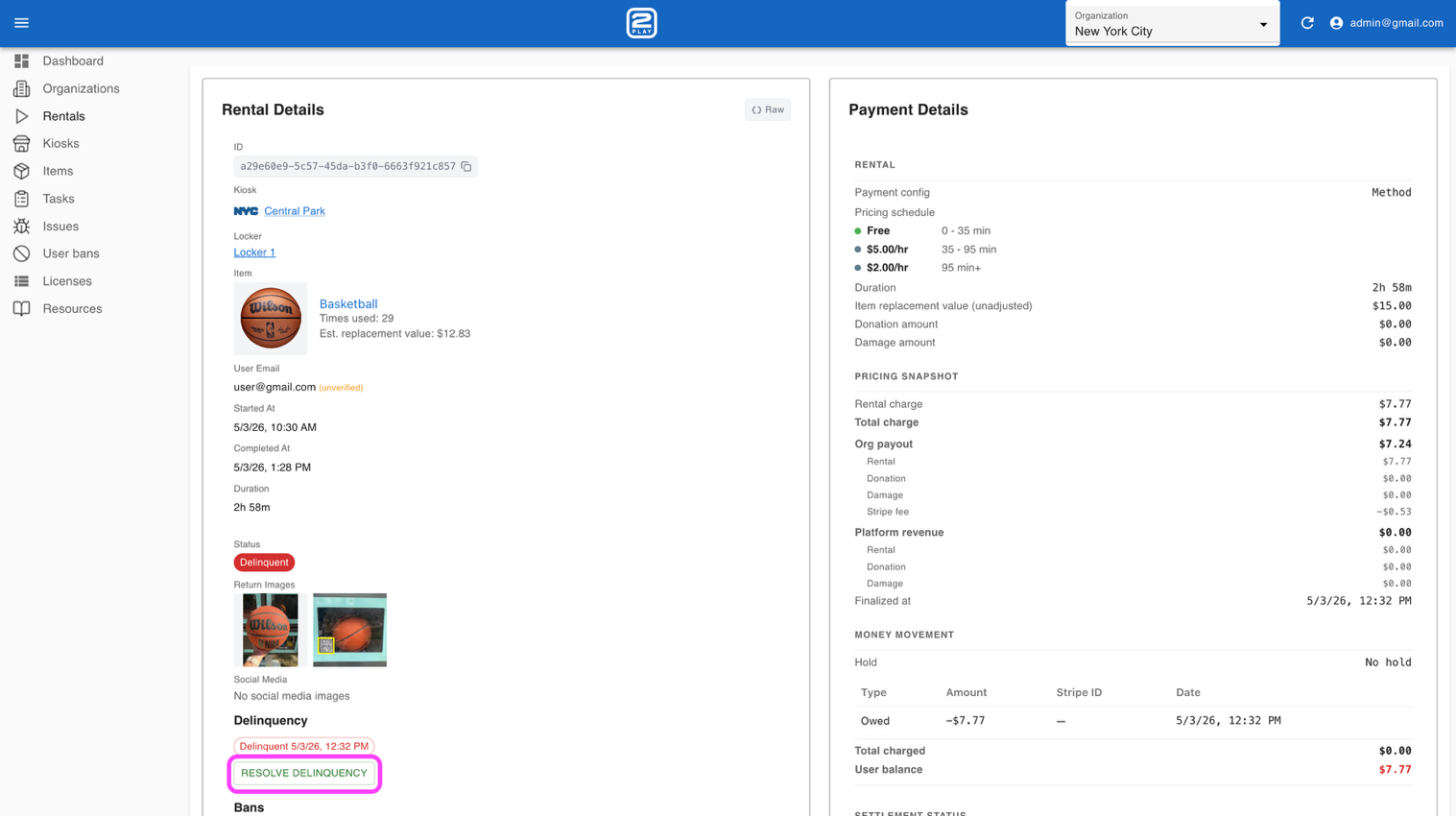
Resolving a delinquent rental